
Batch Picking a PackOne batch is no different than picking any other batch.
Batch Picking must be configured such that the Cart is scanned prior to the system dropping a Batch to the iPad. Cart(s) configured as CartType = PackOne are assigned PackOne batch(es).
A User's picking is only restricted by the Cart they scan.
Example of PackOne Batch Picking
Below is an example of a typical Pack One batch. One Item is being picked to satisfy nine (9) Orders.

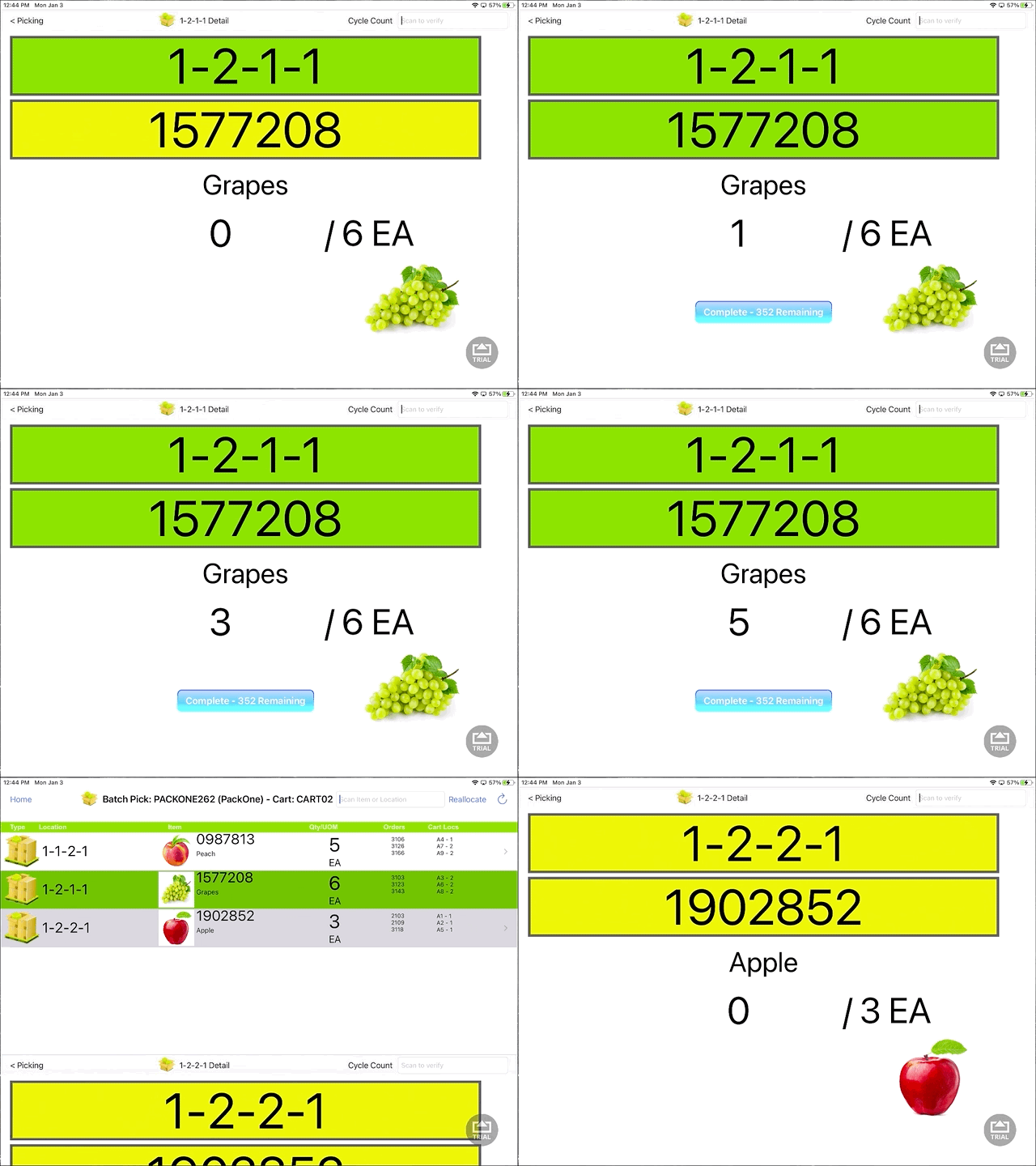
The User is directed to Pick the product. Standard scanning and verification rules apply.
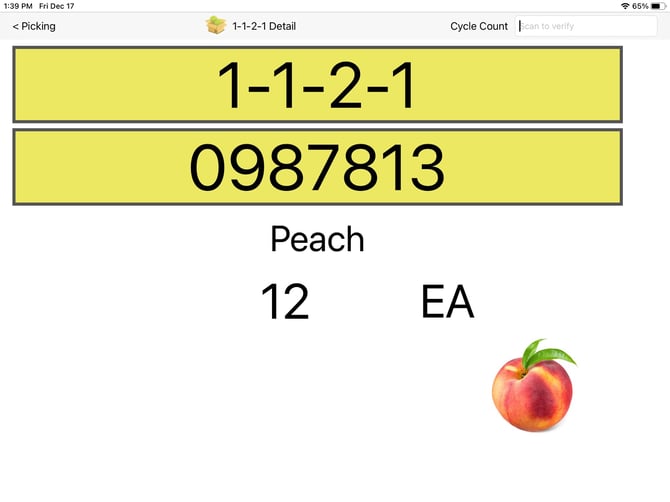
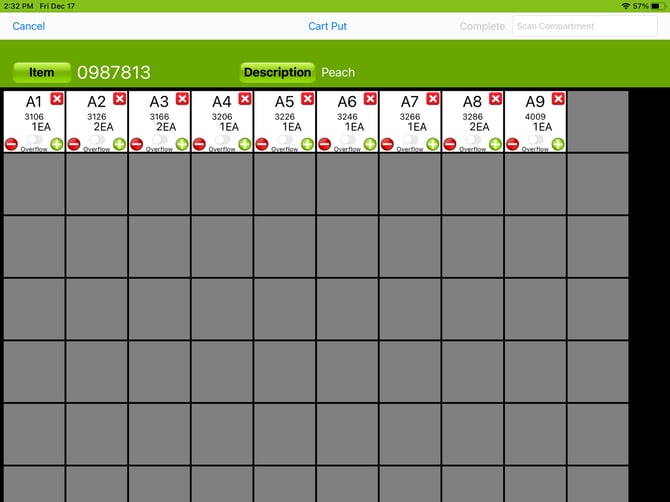
We envision the User will just throw the product onto the cart and scan the cart ID (i.e. CART01) to complete the pick. If the User wishes to indicate a SHORT, they simply press the minus button for the appropriate Order(s) prior to hitting the scanning the cart ID. The short will be noted and indicated on the PackOne verify app.
To bypass the cart put screen in the PackOne picking process simply navigate to the Group settings to which the picker has been assigned within WOS Manager, expand the Picking preferences, and toggle Verify Quantity to the on position. Please note that by doing so WOS will require each qty of the item to be scanned (ex. 20 cantaloupe = 20 scans).
Note: It is recommended that If there are large quantities of single SKU's it is best to keep Verify Quantity turned off.
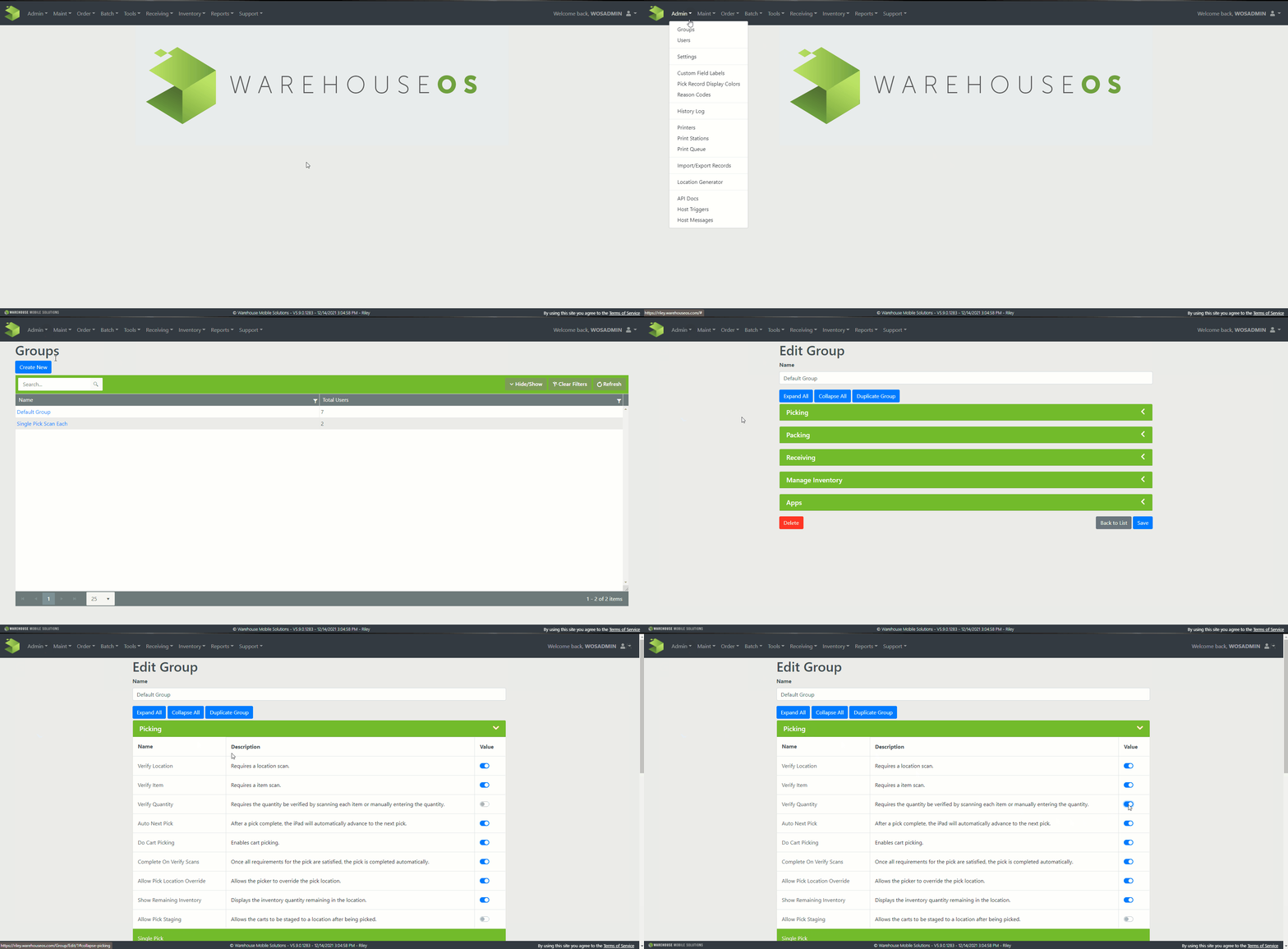
Verify Quantity:
- Disabled: Scan one item, place complete quantity of that item on cart, then scan cart ID.
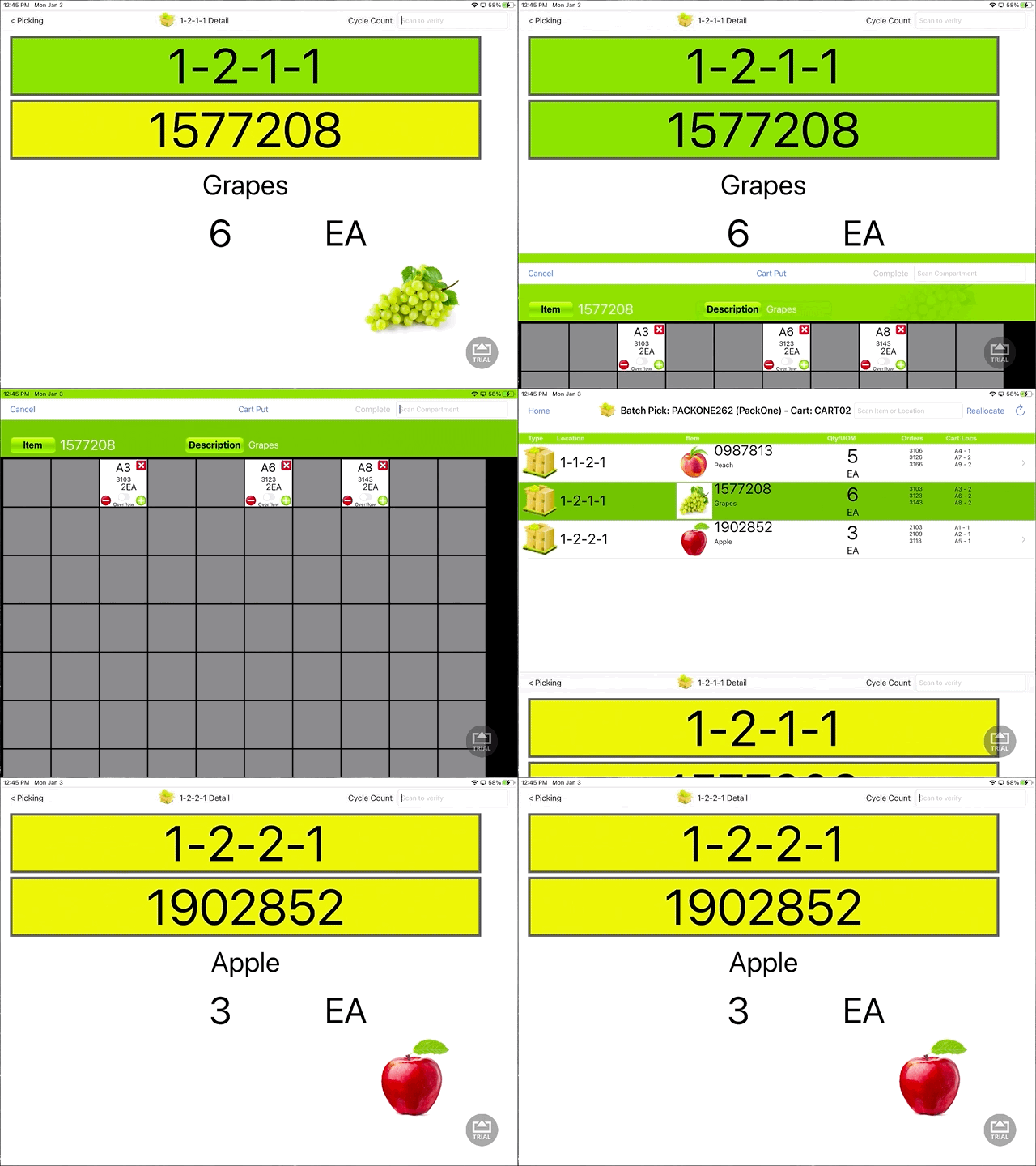
- Enabled: Scan each item as you place them on the cart.
Note: Batch Picking case(s) would be no different other than the User is directed to pick Case quantities (standard Case pick screen - gray background).